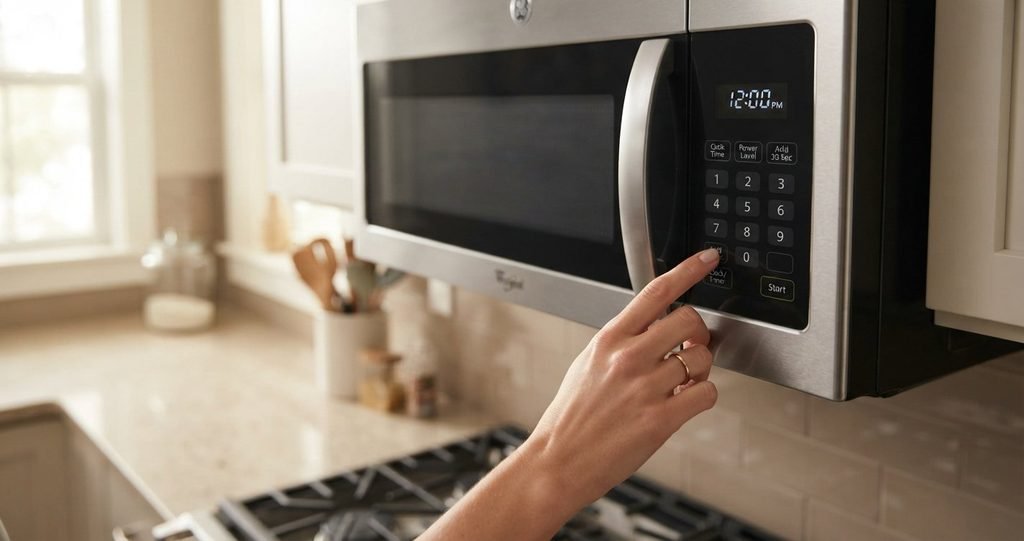
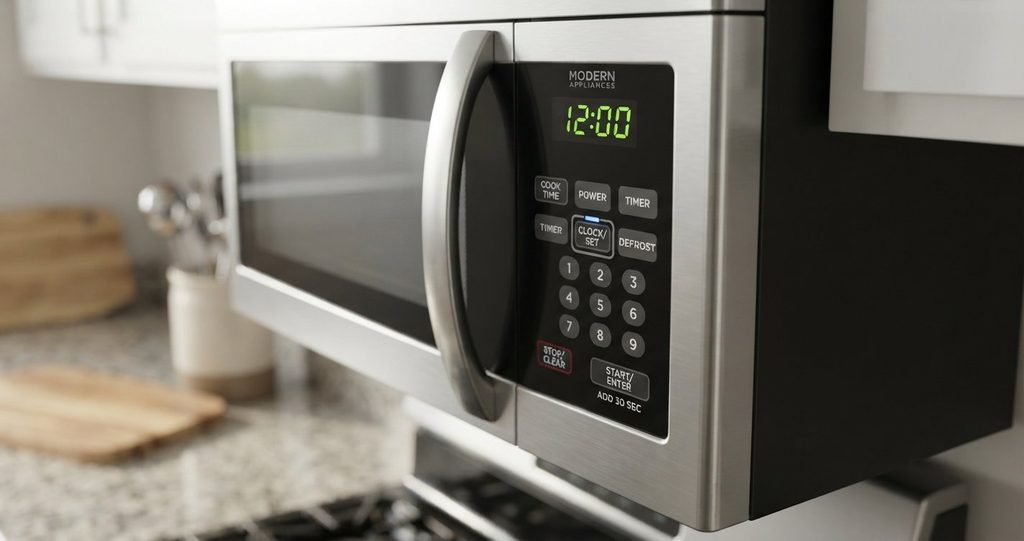
To change the time on a microwave, press the Clock button (often labelled Clock, Timer/Clock, or Clock/Timer), enter the correct time with the number pad or dial, then press Start/Enter or the Clock button again to confirm. Button names vary by brand and model, but this basic pattern works on most microwaves. If your clock is blinking or showing 12:00, you just need to set it again.
Read More: How to Unlock GE Microwave: Complete 2026 Guide
The Basic Method That Works on Most Microwaves
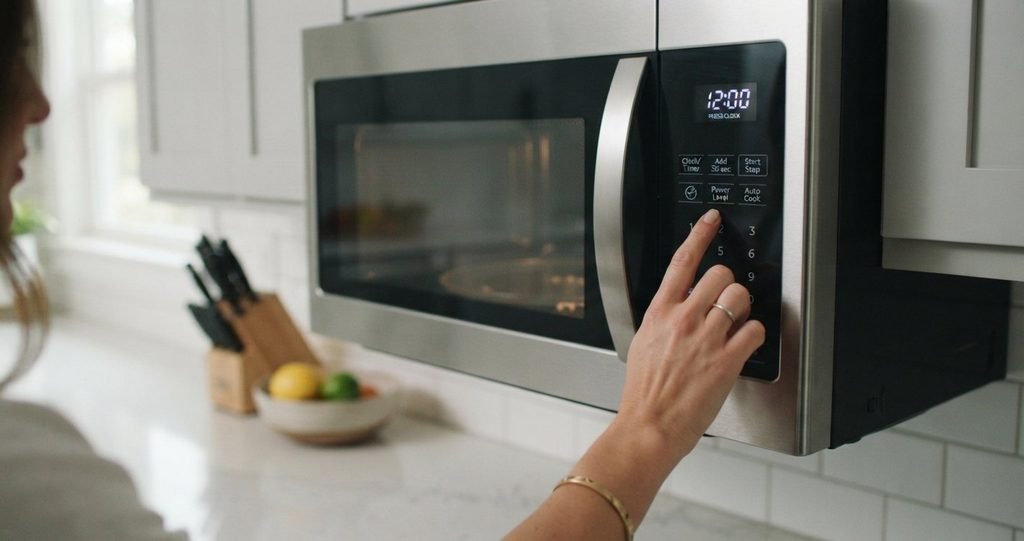
A general guide from Hunker notes that most microwave clocks follow a similar process: find the Clock button, enter the current time, choose AM or PM if asked, and press Start or a confirmation button.
- Press Stop/Clear (if your microwave has it) so you start from a clean slate.
- Press the Clock button (it may be labelled Clock, Timer/Clock, or Clock/Timer).
- Enter the time using the number keypad, or turn the dial if your model has one.
- Choose AM or PM if the microwave asks.
- Press Start/Enter or the Clock button to confirm.
If the display is still blinking, the time hasn’t been confirmed yet.
How to Change the Time by Brand
Controls differ between brands and even between models, so check which one you have.
| Brand | Steps | Notes |
| LG | Press Stop/Clear, then Clock, enter the time with the number keys, press Start/Enter | For AM or PM, press 1 for AM or 2 for PM before confirming (on models that ask) |
| Samsung | Press OK/Clock, choose 12- or 24-hour format with the dial, set the hour, then the minutes, then press OK/Clock | Dial models; steps are from Samsung’s Australian support page, and other regions may differ |
| Panasonic | Press Clock/Timer twice (the colon blinks), enter the time with the keypad or dial, press Clock/Timer again | Display is 12-hour; the oven won’t operate while the colon flashes |
| GE (push-button) | Press Clock, enter the time, select AM/PM, press Start or Clock | Typical for electronic push-button models |
| GE (dial) | Press Settings, turn the dial to Clock Set, press the dial, then adjust hours and minutes | Typical for dial models |
Sources: LG, Samsung, and Panasonic support pages and Hunker. Always confirm against your owner’s manual, since procedures vary by model.
What this means: the pattern is always “open clock mode, enter the time, confirm.” Only the button names and whether you use a keypad or a dial change.
LG Microwave: Step by Step
LG’s support page gives these steps:
- Press Stop/Clear.
- Press Clock.
- Enter the time with the number keys.
- Press Start/Enter.
To switch between 12-hour and 24-hour display: press Stop/Clear, hold Timer/Clock for about three seconds until “12H” appears, press Start/Enter, use Timer/Clock to toggle between 12H and 24H, then enter the time and confirm. LG notes that this option and its steps vary by model.
Samsung Microwave: Step by Step
Samsung’s support page describes dial models like this:
- Press OK/Clock.
- Turn the dial to choose 24-hour or 12-hour format, then press OK/Clock.
- Turn the dial to set the hour, then press OK/Clock.
- Turn the dial to set the minutes.
- When the right time shows, press OK/Clock to start the clock.
Samsung also reminds owners to adjust the time during daylight saving transitions. That page applies to Australian models, so check your manual if you’re elsewhere.
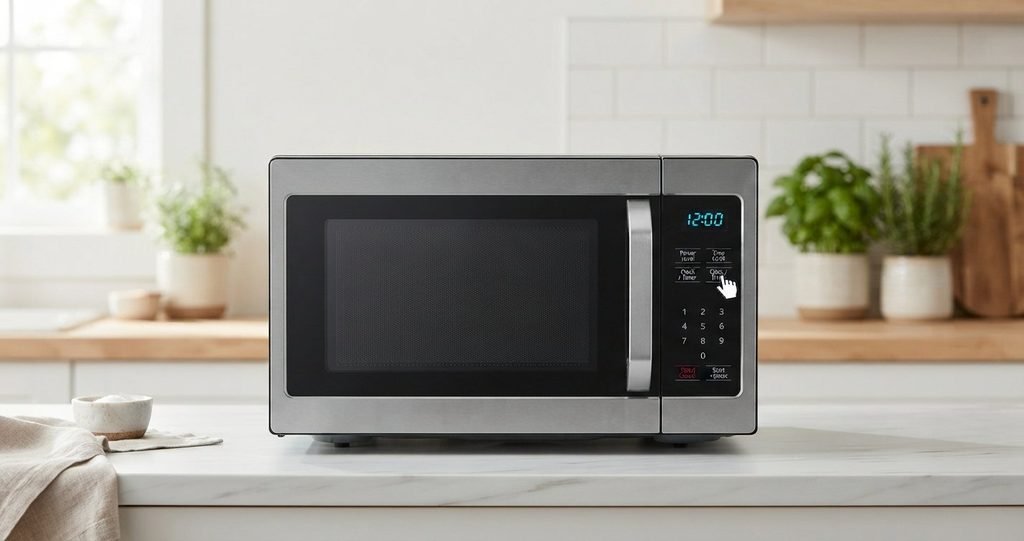
Panasonic Microwave: Step by Step
Panasonic’s help page says most models work like this:
- Press Clock/Timer (or Clock/Timer (Less)) twice. A colon will blink.
- Enter the time with the number keypad.
- Press Clock/Timer again to finish. The colon stops blinking.
On dial models, you rotate the dial to set the time, and on some touch models,s you use the plus and minus buttons or a slider. Newer Alexa-enabled models may set the time automatically when connected.
Changing the Time for Daylight Saving
Most microwaves don’t adjust automatically, so you change them by hand twice a year. Use the same steps above: press Clock, enter the new time, and confirm. Samsung’s guide specifically recommends updating the clock during daylight saving transitions. Models that connect to Wi-Fi or a voice assistant may update on their own.
Why Is My Microwave Clock Blinking or Showing 12:00?
| What you see | Likely cause | Fix |
| Blinking 12:00 | Power was interrupted | Reset the clock with the steps above |
| Blinking colon (Panasonic) | Time not confirmed | Press Clock/Timer again to finish |
| Time resets repeatedly | Frequent power loss or a loose plug | Check the outlet and plug |
| Display shows 88:88 then 12:00 | Normal startup display | Set the time |
Hunker notes that after a power outage you need to reset the clock manually. Panasonic’s guide says the time persists as long as power stays connected.
If the Clock Button Doesn’t Work
- Try pressing Stop/Clear first, then Clock.
- Unplug the microwave for about a minute, plug it back in, and try again.
- Check your owner’s manual for model-specific steps. Hunker advises this when the Clock button doesn’t respond.
- If the panel still doesn’t respond, the control panel may need service.
Can You Set a 24-Hour (Military) Time?
Sometimes. LG documents a 12H/24H toggle on certain models, and Samsung’s dial models let you choose the format during setup. Hunker notes that electronic push-button GE models can’t be set to military time, while some GE dial models can. Panasonic’s display is 12-hour. If your manual doesn’t mention a time format, your microwave probably doesn’t support 24-hour display.
Frequently Asked Questions
How do I change the time on my microwave?
Press the Clock button, enter the correct time, and press Start/Enter or the Clock button to confirm. On dial models, turn the dial to set the hours and minutes.
Why does my microwave clock keep blinking?
It usually means power was interrupted and the clock needs to be set again, or the time hasn’t been confirmed yet.
How do I change the time on a Samsung microwave?
Press OK/Clock, choose the time format with the dial, set the hour and minutes with the dial, and press OK/Clock to confirm.
How do I change the time on an LG microwave?
Press Stop/Clear, then Clock, type the time, and press Start/Enter.
How do I set the clock on a Panasonic microwave?
Press Clock/Timer twice, enter the time, and press Clock/Timer again.
Does the microwave clock change automatically for daylight saving time?
Most don’t, so you need to change it by hand. Some connected models may update themselves.
Can I set my microwave to 24-hour time?
Some models can. LG and some Samsung and GE dial models offer it, but many push-button microwaves and Panasonic models are 12-hour only.
Why won’t my microwave let me set the time?
Try Stop/Clear first, then unplug the unit for a minute and plug it back in. If the buttons still don’t respond, check the manual or contact the manufacturer.
How do I set AM or PM on a microwave?
On many models, you enter the time and then press a key for AM or PM. On some LG models, press 1 for AM or 2 for PM.
Where is the clock button on my microwave?
It’s on the control panel and may be labelled Clock, Timer/Clock, Clock/Timer, or OK/Clock. Dial models may use a Settings button instead.
Conclusion
Changing the time on a microwave takes less than a minute: open clock mode, enter the time, and confirm. The button names differ across LG, Samsung, Panasonic, and GE, but the process is the same. Reset the clock after power cuts and daylight saving changes, and if the buttons won’t respond, reset the power or check your manual for your exact model.